How Many Days of Recording Will You Get? Sizing the Hard Disk for Your NVR or DVR
"How many days will it keep?" is the most common question after a camera installation, and the honest answer is: it depends on the bitrate. Resolution alone does not tell you. Once you know the bitrate of each camera, the calculation takes a minute, and you can choose the disk with confidence instead of guessing.
Bitrate is the number that matters
Every camera sends a stream measured in kilobits or megabits per second (kbps or Mbps). The recorder writes that stream to the disk. You can find the value in the camera or recorder settings, usually under Encode or Video, for the main stream.
Bitrate depends on several settings:
- Resolution: 4MP carries more detail than 2MP and normally needs a higher bitrate.
- Frame rate: 25 frames per second looks smooth. A lower frame rate saves space but makes fast movement look jumpy, so lower it only on cameras where that does not matter.
- Compression: H.265 (HEVC) was designed to need roughly half the bitrate of H.264 for similar visual quality; real savings vary with the scene. Smart codecs such as Dahua's H.265+ go further on scenes with little movement.
- CBR or VBR: constant bitrate uses the full value all the time. Variable bitrate drops when the scene is still, so the real average is lower than the maximum.
- The scene: a busy street, trees moving in wind or rain at night produce more data than an empty corridor. IR noise at night can also raise the bitrate.
The formula
To turn bitrate into storage per day:
GB per day = Mbps x 86,400 seconds / 8 bits per byte / 1,000 = Mbps x 10.8
So one camera recording continuously at 4 Mbps writes about 43 GB per day. Multiply by the number of cameras, then divide the disk size by the daily total to get the number of days.
Two notes on units. Disk makers use decimal units (1 TB = 1,000 GB), and the recorder formats the drive and keeps a small reserve, so the usable space is a little less than the label. Round your result down.
Worked table: 8 cameras recording 24 hours a day
| Bitrate per camera | Total per day | 2 TB | 4 TB | 8 TB |
|---|---|---|---|---|
| 1 Mbps | 86 GB | 23 days | 46 days | 92 days |
| 2 Mbps | 173 GB | 11 days | 23 days | 46 days |
| 4 Mbps | 346 GB | 5 days | 11 days | 23 days |
| 8 Mbps | 691 GB | 2 days | 5 days | 11 days |
The figures are rounded down and assume continuous recording at a constant bitrate. With 4 cameras instead of 8, double the days. With 16 cameras, halve them.
Motion recording changes the picture
If the recorder only saves video when it detects motion, the disk lasts much longer. Suppose motion events, including the few seconds the recorder keeps before and after each event, add up to about 6 hours a day. That is a quarter of the day, so the number of days roughly multiplies by four.
The catch: motion time is hard to predict. A camera facing a busy street may trigger all day; a camera in a storeroom may trigger for minutes. Many owners use a mix: continuous recording on the entrance and the till, and motion or smart-event recording (person and vehicle detection) on quieter cameras. Smart events also cut the false triggers caused by shadows, cats and leaves.
A real example: a small shop
A shop has 6 IP cameras at 4MP. The recorder shows each one at about 4 Mbps on H.265, recording 24 hours. The owner wants 30 days of footage.
- Total bitrate: 6 x 4 = 24 Mbps.
- Per day: 24 x 10.8 = 259 GB.
- For 30 days: 259 x 30 = 7,776 GB, about 7.8 TB.
An 8 TB disk would be almost exactly full, with no margin. The options:
- Use a 10 TB disk, or two disks if the recorder has two bays.
- Lower the bitrate to 3 Mbps on the cameras that see little movement. At 3 Mbps across all six, the need drops to about 5.8 TB, and an 8 TB disk gives a comfortable margin.
- Switch quieter cameras to motion recording.
Before buying, check the recorder's datasheet for the number of bays and the maximum capacity per bay.
Use a surveillance hard drive
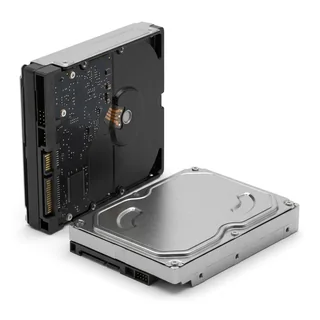
A recorder writes to the disk all day, every day, from many streams at once. Surveillance drives such as WD Purple and Seagate SkyHawk are built for that pattern. Western Digital, for example, rates WD Purple drives for 24/7 operation with a workload rating of up to 180 TB per year, about three times a typical desktop drive. Desktop drives can work at first, but they are not designed for constant writing.
Keep the recorder in a ventilated place, away from direct sun and closed cupboards without airflow. Heat shortens the life of any hard disk.
Settings worth checking after installation
- Overwrite should be on, so the recorder replaces the oldest footage when the disk is full.
- Disk health: most recorders show the disk status. Look at it monthly.
- Export important clips right away. When something happens, copy the footage to a USB drive or phone before it is overwritten.
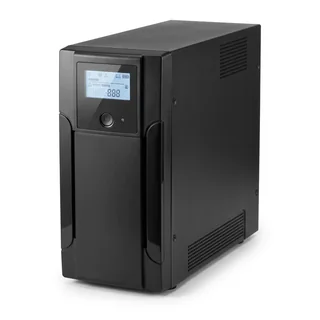
- Power: a sudden power cut while writing is hard on disks. A small UPS for the recorder protects both the disk and the recording during outages.
Where to start
- Choose a drive from our surveillance hard drives.
- Need more bays or channels? See NVR and DVR recorders.
- Protect the recorder with a unit from UPS and power protection.
- Want us to set bitrates and recording schedules for you? Book an installation visit or contact us.