Wi-Fi Coverage for Apartments and Villas: Router, Mesh or Access Points?
A fast internet plan does not help much if the signal dies two rooms away from the router. In most homes the problem is not the router's headline speed. It is distance, walls and where the router sits. Concrete and brick walls, floor slabs and the metal in kitchens and bathrooms all weaken Wi-Fi, and the 5 GHz band, which carries the fastest speeds, loses strength through walls faster than 2.4 GHz.
Here is how to pick the right fix for your space.
First, fix what you already have
Before buying anything, try these:
- Move the router to a central, open spot, raised off the floor and out of cabinets. The ISP line often enters at the front door, which is rarely the middle of the home. A longer cable from the wall socket to the router can solve a lot.
- Test where it matters: run a speed test next to the router, then in the far bedroom. If speeds near the router are close to your plan but drop sharply far away, you have a coverage problem. If both are slow, the bottleneck is the internet line, and no Wi-Fi upgrade will fix that.
- Update the firmware and restart the router.
The four ways to extend coverage
1. A better single router
For a typical apartment where the router can sit near the middle, one good dual-band Wi-Fi 6 router is often enough. It is the simplest setup: one device, one network, nothing to coordinate.
2. A range extender
An extender repeats the signal into one weak spot, such as a single far bedroom. It is the cheapest fix, but a wireless extender uses part of its airtime to talk to the router, so speed beyond it is lower, and depending on the setup devices may not move smoothly between router and extender. TP-Link's own guidance puts extenders as a fix for one trouble spot, not for whole-home coverage.
3. A mesh system
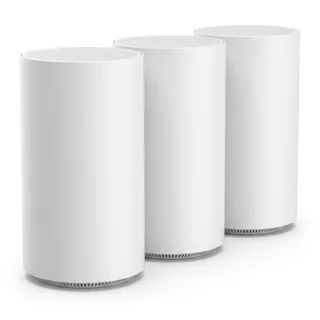
Mesh systems, such as TP-Link Deco, use two or more units that work as one network with one name and password. Your phone moves between units as you walk around without you doing anything. Mesh suits:
- Large apartments, duplexes and roof apartments.
- Villas with two or three floors.
- Homes where you cannot run cables.
Place each unit roughly halfway between the previous unit and the dead zone, not inside the dead zone. A unit that barely hears the main unit can only pass on a weak signal.
The best mesh setups use wired backhaul: an Ethernet cable connects the units, so they do not spend Wi-Fi airtime talking to each other. If your home already has network points in the walls, use them.
If you must keep the ISP router, most mesh systems can run in access point mode, adding coverage while the ISP router keeps managing the network. Note that mesh families from the same brand do not always mix: TP-Link, for example, states that Deco, OneMesh/EasyMesh and Omada products are not designed to form one mesh together.
4. Wired access points
For villas, offices, clinics and shops, ceiling or wall access points connected by Cat6 cable are the most consistent option. Each access point gets a full wired connection, and with a PoE switch the same cable powers it, so there is no adapter near the ceiling. Business systems such as TP-Link Omada let you manage all access points from one controller or app.
The trade-off is cabling. It is easiest during construction or finishing, which is why it is worth planning network points in a new villa even if you start with a mesh system.
Which setup for which home
| Space | Usually works well |
|---|---|
| Small or medium apartment, router central | One Wi-Fi 6 router |
| Large apartment, one far room weak | Router plus one mesh unit or an extender |
| Duplex or roof apartment | Mesh system, two or three units |
| Villa, no cables possible | Mesh system, at least one unit per floor |
| Villa or office with cabling | Mesh with wired backhaul, or access points on a PoE switch |
| Garden, pool or gate camera | Outdoor-rated access point, or a wired camera instead |
Wi-Fi 6, 6E and 7: what changes
Wi-Fi 6 (802.11ax)
Wi-Fi 6 handles many devices at once more efficiently than Wi-Fi 5. That matters in homes with phones, TVs, cameras, smart plugs and laptops all connected. For most homes today it is the sensible baseline.
Wi-Fi 6E
Wi-Fi 6E adds the 6 GHz band, which is less crowded but has shorter range through walls. Whether 6 GHz can be used depends on each country's spectrum rules, so check that the band is enabled for your region before paying for it.
Wi-Fi 7 (802.11be)
According to the Wi-Fi Alliance, Wi-Fi 7 brings:
- 320 MHz channels in the 6 GHz band, twice the width of Wi-Fi 6's widest channels.
- Multi-Link Operation (MLO): a device can use more than one band at the same time, which improves speed and reliability.
- 4K QAM: about 20% higher peak transmission rates than Wi-Fi 6's 1024 QAM, at short range with a strong signal.
The headline gains depend on 6 GHz availability and on your phones and laptops supporting Wi-Fi 7. Wi-Fi 7 routers also work on 2.4 and 5 GHz and stay compatible with older devices.
Practical advice: if your internet plan is below a few hundred megabits and your devices are a few years old, a good Wi-Fi 6 mesh system will improve daily experience more than a single Wi-Fi 7 router. Choose Wi-Fi 7 when you are buying for the long term, have newer devices, or move large files inside the home.
Small details that make a difference
- Use one network name for all bands and units unless an old device needs a separate 2.4 GHz name. Some smart-home devices only work on 2.4 GHz.
- Connect fixed devices, such as the TV, the NVR and a desktop PC, by cable where you can. It frees Wi-Fi for phones.
- Put the router and mesh units on a small UPS so Wi-Fi survives short power cuts.
- Change the default admin password and use WPA3 or WPA2 security.
Where to start
- One-device upgrade: browse routers, including mesh systems.
- Villas and offices: access points with PoE switches and UTP cables.
- Keep Wi-Fi on during outages: UPS and power protection.
- Want a coverage plan for your floor layout? Book an installation visit or contact us.